-
I thought we were going to some little shop, but this is like a supermarket
Leigh Francis / Keith Lemon
-
Most comprehensively stocked shop, so a great deal to browse among, and find useful items. The staff very helpful and friendly, went to unpack the Bachmann boxes as fast as they came off the delivery truck, to find the items I wished to purchase. Good advice on the correct rail joiners for Peco code 83 (Code 75 FB type); and we had a happy amble through the pros and cons of some newly introduced RTR OO products.
Paul - 4.5 Star , via Uk Model Shop Directory
-
Only problem with GM is they have far to much stock!! Costs Me a fortune every time I go in ! Excellent team and excellent service
Kev – 5 Star , via Google
-
Lovely clean and well laid out shop . Staff very helpful
Caroline – 5 Star , via Google
-
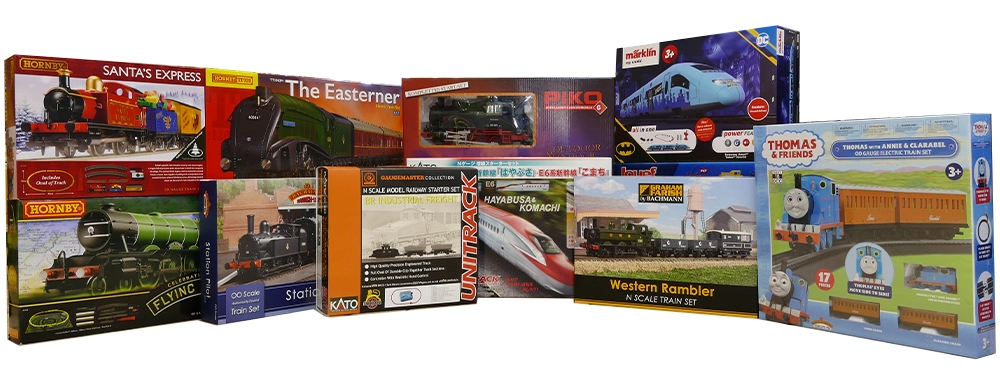
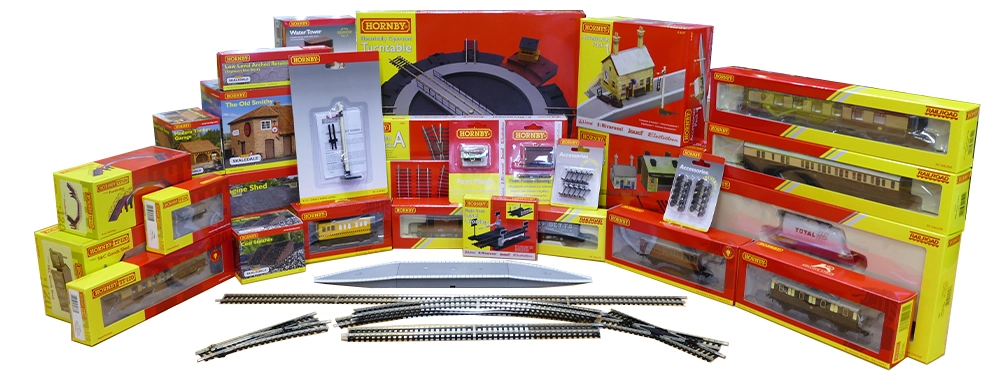
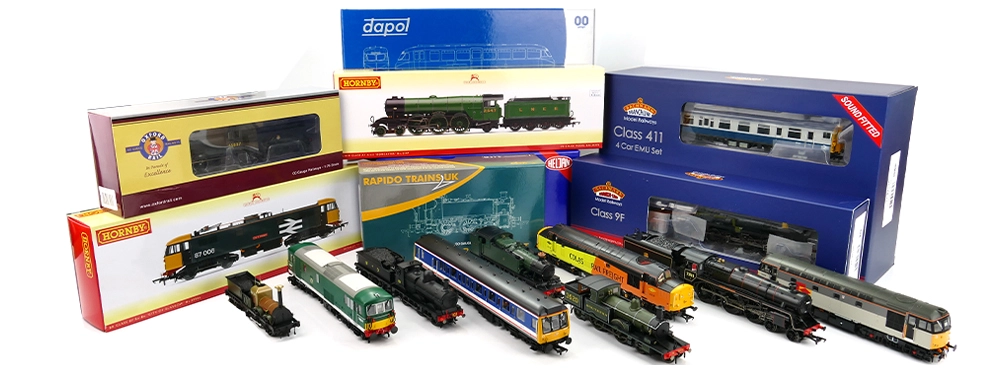
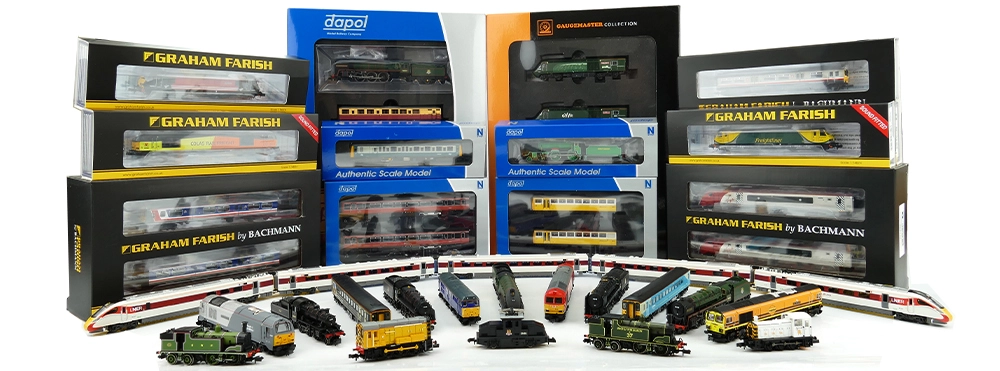
Great place with a huge variety of all things model railway
Michael – 5 Star , via Google
-
The place to go for all your model railway needs. 5 Stars
Alan, via Google
-
Excellent service from the person answering the telephone and very helpful advice. [Controller] repaired and returned at no charge. Will highly recommend Gaugemaster. MANY THANKS. 5 Stars
Margaret P, via Trustpilot
-
My 5-year-old Gaugemaster Prodigy Advance developed a problem. After considering the options I gave Customer Services a call and was advised to send it to them. Posted on Wednesday, received an email with a no charge invoice the following Wednesday and the repaired item on the Friday. Excellent service. 5 Stars
Martyn P, via Trustpilot
-
We have found Gaugemaster to have the best customer service ever. They are always helpful and informative when phoning them. We sent our Prodigy back for repair (it is at least 2 years old) and it was repaired by replacing a component free of charge. Since then, we have phoned regarding other matters, and they have talked us through the issue and solved it. We cannot praise them enough. If only other companies had this after sales ethic. 5 Stars
Maureen D, via Trustpilot
-
Excellent shop. Could spend my life in this place!
Ryan M, via Google
-
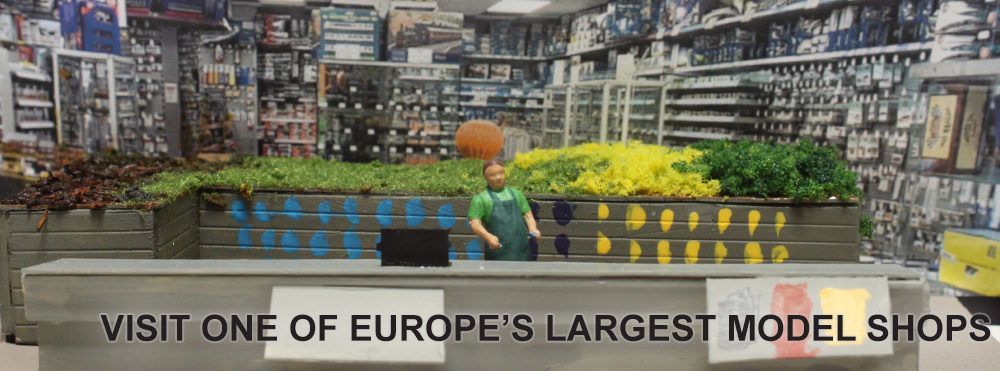
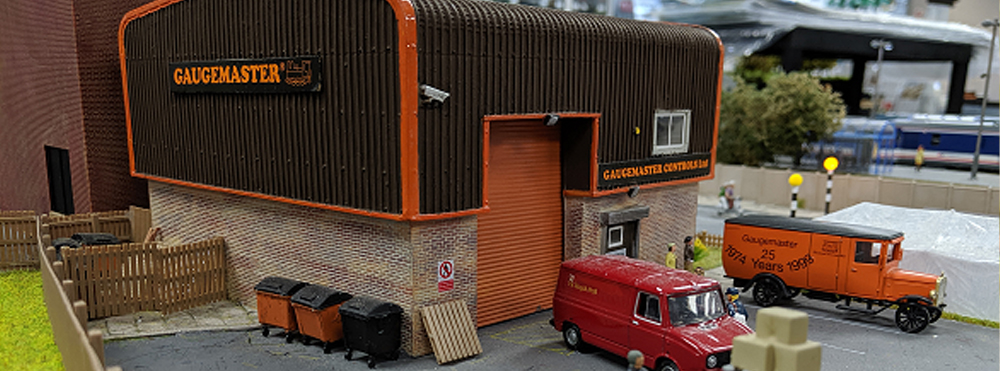
Very well stocked and lovely store. The staff were very helpful and helped pick out a few products for me. Their own in-store layouts are great for a reference and being next to the warehouse is great for hard-to-get items online. Extremely well stocked across the different brands. Well worth the two-hour drive. Would highly recommend. Website is great as well for ordering.
Luke M, via Google
-
If you’re a train, model making enthusiast then this is the shop for you as it has virtually has everything you could ever need from all size trains and accessories to models from Airfix to Tamiya. The range here is big and the staff are more than willing to help. There is a carpark at the back of the shop and the station is literally on their front door.
Chris E, via Google
-
My one stop model train shop! Very extensive range of all gauges, very friendly and helpful staff. Competitive prices. If you like model trains, I would highly recommend you go and see.
Potts S, via Google
-
Fantastic experience and will be ordering from Gaugemaster again in future. I am getting back into model railways and Gaugemaster were very helpful, they took the time to answer all of my questions and gave me advice on modern products through phone calls and emails before I purchased what I wanted.
Adrian C, via Google
-
Friendly staff with an amazing selection of items. I feel like I've entered Narnia. Can spend hours looking at the products for sale.
Duncan W, via Google
-
Friendly, helpful staff with a comprehensive range to suit all ages.
Peter B, via Google
-
I would like to thank you very much for repairing my twin track controller which I've owned for a number of years. well done Gaugemaster and a big thank you.
John O, via Facebook
-
I have always had excellent service from Gaugemaster. Huge product range, particularly for the continental modeller, fair prices and fast shipment with several delivery options. Very helpful staff if you need advice. You can't go wrong here.
Steve, via Trustpilot
-
Always a great experience, friendly staff and plenty of parking.
Nick A, via Google
-
Thank you again guys. Despite these difficult times you have delivered as you said you would. I really must come down and see you sometime when all this blows over. Excellent service.
Alan D, via Facebook
-
Fantastic service! All items arrived well before I expected them - even with the current situation. Excellent communications from staff to my questions too!.
Tomasio B, via Facebook
-
I visited the shop to collect an item. I was astounded by the amount of various items the shop had for sale. A really good place to go for your modelling needs, the staff were knowledgeable and courteous.
Stephen F, via Facebook
-
Their products do exactly what they say on the box - work perfectly, no dramas and you get a good professional service over the phone or in person.
Geoff W, via Facebook
-
Gaugemaster has everything for the railway modeller of all sizes and all countries, such as the US and Europe. The choice is amazing and the ease of use of the site is why I choose them.
Nicolas H, via Trustpilot
-
A great shopping experience. All the staff are extremely helpful going above and beyond what is necessary to ensure customer satisfaction.
Mrs Powell, via Trustpilot
-
A mecca for hobbyists, huge selection of items in a large store, parking at the rear. Staff are helpful and mail order is very fast. Highly recommended.
Colin N, via Trustpilot
-
I frequently use Gaugemaster. Nothing but superior choice and excellent service, even for the smallest items. Highly recommend.
Brian, via Trustpilot
-
Fantastic shop, everything you need and more. Helpful and friendly staff.
David H, via Facebook
-
Loads of different stock available, very friendly staff, extremely easy to get to, will be coming back again soon.
Ruby C, via Facebook